
Shape type without leaving the canvas
Choose fonts, tune spacing, control text boxes and keep every word editable.
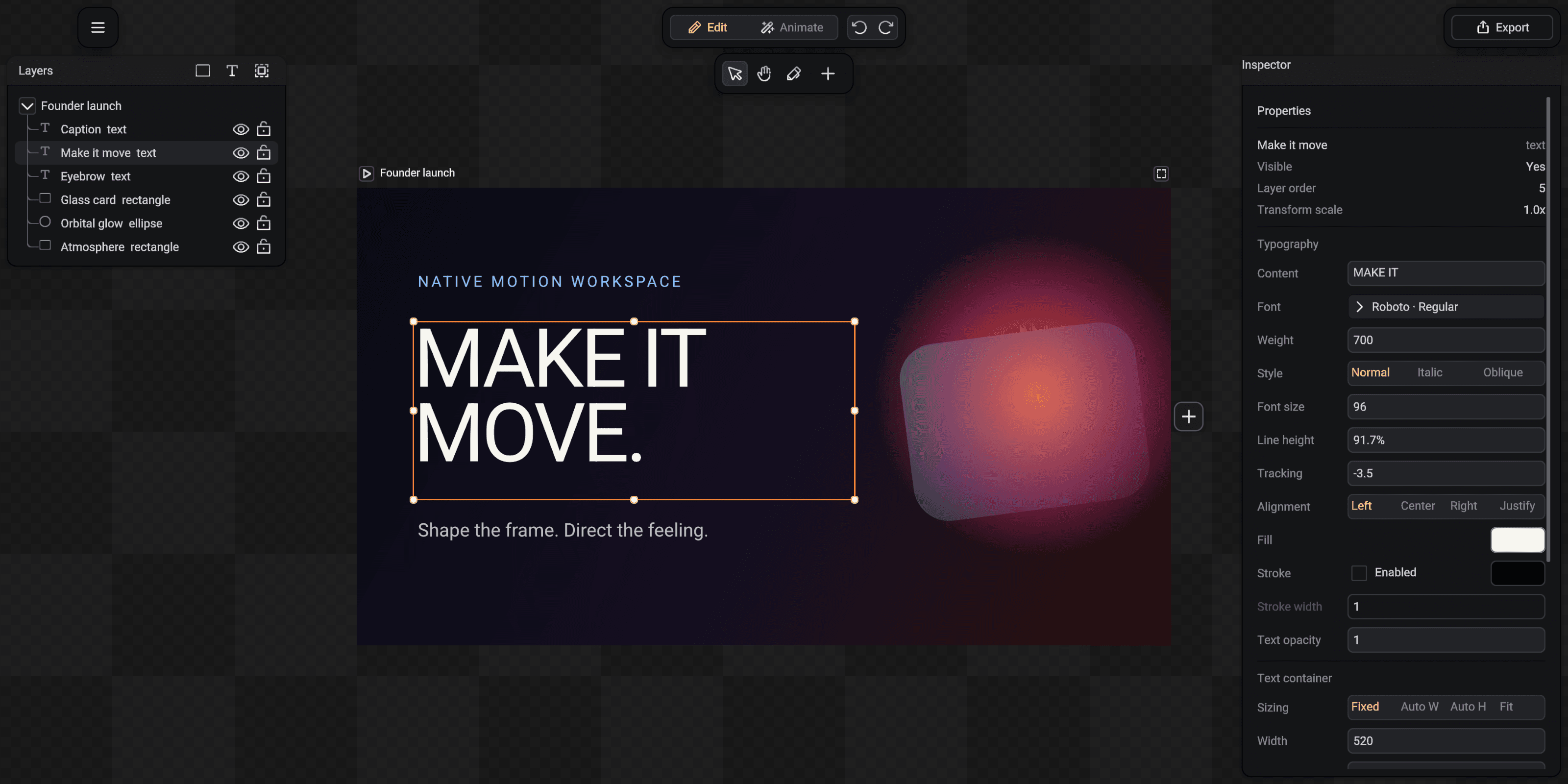
Text remains source content. You can style and animate it by characters, words or lines, then revise the copy without replacing it with outlines.
Create and edit text
Choose Text from Add, click the project and type. Finish text editing to return to ordinary selection handles. Double-click an existing text layer to edit its words again.
Single-line sizing does not accept line breaks. Choose a multiline sizing mode before entering copy that needs paragraphs or manual returns.
Choose and search fonts
Open the font dropdown and type in its search field to filter installed system families. Weight and style remain separate controls so the exact available face can be selected.
Imported font files are packaged with the document when their license and format permit it. System-only fonts should also be installed on any machine that opens the project.
Set the typographic system
The Inspector groups font family, weight, style, size, line height, tracking, paragraph spacing and alignment. Line height is presented as a percentage so its relationship survives a font-size change.
Fill, stroke and opacity stay with the text layer, while transforms control the placement of the complete shaped result.
- 1Font and face
- 2Size, line height and tracking
- 3Text box and alignment
Choose the correct sizing mode
Fixed gives the text an explicit wrapping box. Auto Width keeps one growing line. Auto Height preserves width and grows vertically. Fit follows the complete shaped content.
Resize the text container with its canvas handles. This changes layout bounds rather than silently changing the font size.