
Animate with presets and the timeline
Apply searchable motion presets, refine clips and understand every timeline interaction.
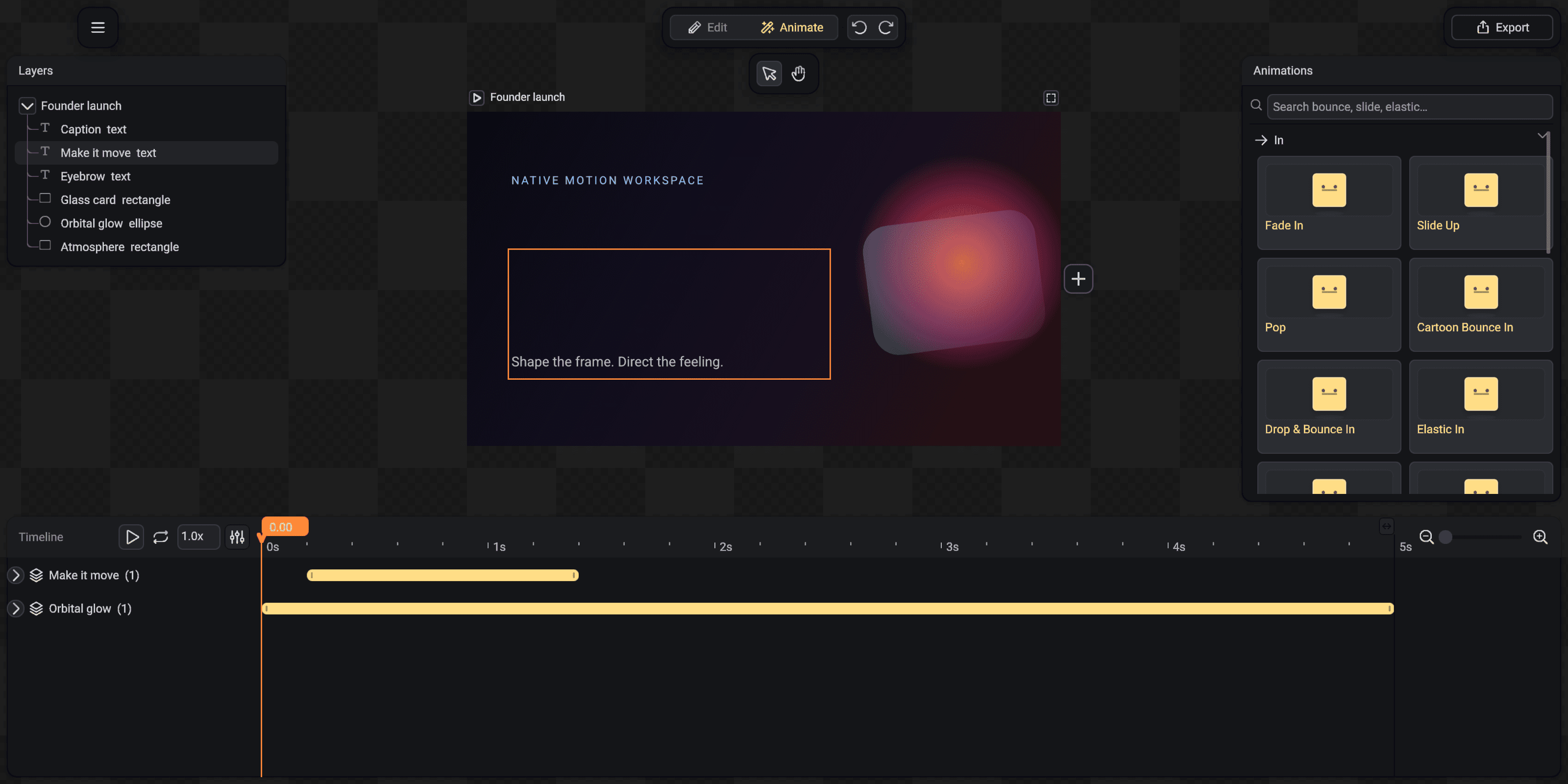
Presets are editable starting points. Applying one creates ordinary clips, tracks and keyframes that remain visible and adjustable on the timeline.
Enter Animate
Select the layer you want to move, then choose Animate at the top. The right dock becomes the preset browser and the timeline opens below the canvas.
Only compatible presets appear. Text Motion is hidden for shapes, while text selections gain character, word and line-aware effects.
- 1Selected layer
- 2Searchable preset browser
- 3Timeline and playhead
Find and preview a preset
Use the realtime search field for a behavior such as bounce, elastic, fade, slide, cartoon or reveal. Each card previews the character of the motion instead of showing a generic dark block.
Choose a preset to add it to the selection. Presets never flatten the artwork or create an opaque video layer.
Position and resize a clip
Drag the body of an animation bar to move its complete timing. Drag the padded right edge to change duration. Extending to the right can scroll the timeline; shortening never pulls the view away from the handle.
Show and Hide use draggable point markers because they represent events, not clips with stretchable duration.
Edit properties and easing
Select an animation item to open only the properties that make sense for it. Move exposes source and destination positions, Fill exposes start and end colors, and Scale can link X and Y or edit them separately.
Expand a clip when individual tracks or keyframes are needed. Easing changes how values travel between keys, while the selected option remains visible in its dropdown.
Animate text as text
Type On supports Normal, Fade In, Blur, Fade In and Blur, Top to Bottom, Bottom to Top and side-based reveals. Directional modes move each text unit into place rather than dropping the complete text block at once.
Emission, glow and shadow follow per-letter Type On opacity. A partly visible letter emits and casts a partly visible shadow, which keeps illuminated reveals physically coherent.
Preview and loop
Use playback controls to start, pause and return through the timeline. The Loop control highlights while active so repeated preview state is unambiguous.
Zoom the timeline around the area being tuned. Animation drawing remains clipped behind the left labels and floating dropdowns.